How to Organize Bookmarks on Android (2026 Guide)
Written by LinkVault Team
Android is the world's most fragmented mobile platform for content discovery. You find interesting links in Chrome, Samsung Internet, Firefox, Reddit, Twitter, YouTube, WhatsApp, Telegram, newsletters in your Gmail or Outlook app, and dozens of other places. Each app has its own "share" or "save" feature, but none of them talk to each other. The result is that your saved content is scattered across Chrome Bookmarks, Reading List entries in various browsers, the YouTube Watch Later queue, Reddit saved posts, and Twitter bookmarks — and none of these silos are searchable together or accessible from each other.
Chrome bookmarks on Android are especially limiting because they have no notes field, no tags, no content-type distinction, and only the most basic folder organization. A folder called "Resources" with eighty unadorned URLs is not an organized library — it is a pile with a label. When you try to find something specific, you are scrolling through every URL hoping to recognize the right one, which is no faster than re-Googling.
Common Android bookmark problems:
Chrome bookmarks have no notes or tags. Can't save from non-browser apps easily. No unified system across all apps. Hard to organize on mobile screen. No search or filtering capability. Bookmarks don't sync properly.
This guide shows how to fix all of this with a cross-app workflow that is fast enough to maintain on Android, works in every app you use, and produces a unified searchable library that syncs to your desktop automatically.
Why Chrome Bookmarks Fail on Android
Chrome bookmarks alternative on Android fail for the same structural reasons Safari bookmarks fail on iPhone, plus some Android-specific problems on top. There is no notes field — you save a URL and get the page title, nothing more. If the page title is vague like "Overview | Platform Docs" or "Home - Acme Inc," your bookmark is essentially meaningless without context. There is no tagging system, so every link gets flattened into a folder hierarchy, and when a link belongs to multiple topics, you have to guess which folder future you will look in. The folder browser on Android Chrome is slow and clunky on a small screen — it was clearly designed as an afterthought compared to the desktop version.
The Android-specific problem is the fragmentation. On iPhone, most content is at least captured through Safari. On Android, different users default to different browsers, and apps like Reddit, YouTube, and Twitter all have their own internal save features. This means Android users often have three or four separate "saved content" systems running in parallel without a single unified library. When you want to find something you saved, you have to remember not just what it was but which app you were in when you saved it — which you almost certainly do not remember.
A cross-app bookmarking tool solves this entirely. One library that accepts links from any Android app, adds notes and tags at the moment of saving, syncs to all your devices in real time, and lets you search across everything simultaneously. That is what a real Android bookmark system looks like.
Android-Friendly Organization Principles
The right Android bookmarking workflow respects the constraints of a small screen and a distracted moment. When you are scrolling Reddit at the end of the day and come across a useful article, you have about ten seconds of patience for saving it before you move on. The system that wins is the one that works in ten seconds while also producing an organized, searchable record that is useful months later. The principles below are designed for exactly that balance.
- Quick capture from any app: the Android Share Sheet is available in every app — one tap sends the link to LinkVault
- Minimal typing required: use Google voice typing for notes — speak the context rather than typing it on a small screen
- Fast search and filtering: your library must be searchable by keyword in under three seconds on mobile
- Works across all apps: saves from Chrome, Firefox, Reddit, YouTube, Twitter, WhatsApp, email, and anywhere else with a Share button
- Syncs to all devices: anything saved on Android must appear on desktop immediately for detailed review later
- Organized but simple: keep categories to five or fewer on mobile — the less decision-making at capture time, the better
- Capture now, organize later: add enough context to be findable, then do the detailed organization on desktop
- Offline-first: your full library must be accessible without an internet connection — critical for commutes and travel
Step-by-Step: Android Workflow with LinkVault
This workflow works in every Android app that supports the Share Sheet — which is nearly all of them. The key design principle is minimum effort at capture time and maximum flexibility at retrieval time. You are not trying to fully organize the link at the moment of saving; you are trying to add just enough context to make it findable when you search for it later. Everything else can wait for your weekly desktop review.
- Find valuable content in any app — Chrome, Firefox, Reddit, YouTube, Twitter, WhatsApp, Gmail, or anywhere with a Share button
- Tap the Share button (Android Share Sheet icon) or long-press the link and select Share or Copy Link
- If using Copy Link: open LinkVault from your Home Screen or app drawer, tap +, and paste the URL
- Tap the note field and use the microphone icon on the Gboard keyboard to dictate your note by voice: "Great Kotlin coroutines explainer, for the background task refactor" or "Buy this for the kitchen project"
- Tap two or three tag suggestions from the list — avoid typing new tags on mobile
- Select a category from your short list
- Tap Save
- Return to whatever you were doing — total time under fifteen seconds
- Weekly: open LinkVault on desktop and spend ten minutes refining notes and tags for any links you saved in a hurry
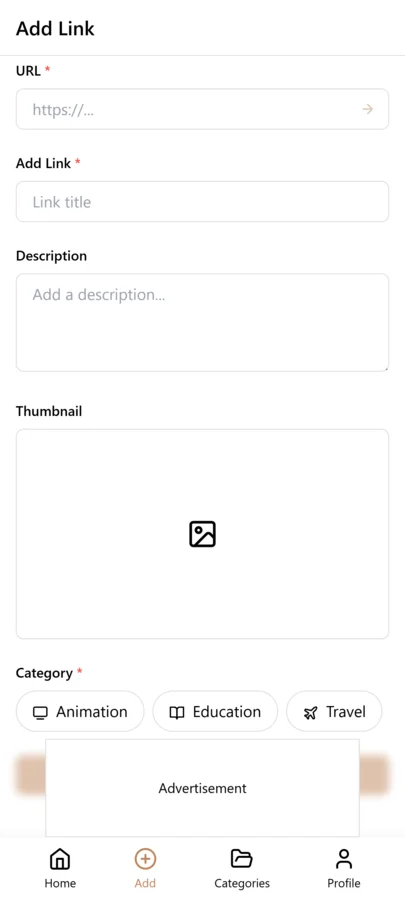
Android Organization Tips
These tips are drawn from how frequent Android users maintain clean bookmark libraries without spending more than a few minutes per week on organization. The common theme is using Android-specific features — voice typing, the Share Sheet, Home Screen shortcuts — to make the capture workflow as fast as possible, while deferring everything except basic context to the desktop review.
- Add LinkVault to your Android Home Screen: long-press the app icon and drag it to your Home Screen so it is always one tap away from any context
- Use Google voice typing for every note: tap the microphone on Gboard and speak naturally — the transcription is fast and accurate enough to be useful even with minor errors
- Keep your category list to five or fewer: every extra category is a decision you have to make at capture time, and decisions cost seconds
- Stick to existing tags on mobile: tap tag suggestions only, never type a new tag on Android — save new tag creation for your desktop review session
- Use search not browsing on mobile: a keyword search in three taps is always faster than opening categories and scrolling
- Do a desktop review every week: filter by "saved this week" in LinkVault on your desktop browser and spend ten minutes adding richer notes, fixing tags, and cleaning up anything you saved in a hurry
- Enable offline mode: your full bookmark library is available without an internet connection — essential for the subway, flights, and areas with unreliable signal
- Import your Chrome bookmarks: export them from Chrome Settings > Bookmarks > Export, then import the HTML file into LinkVault so your entire history is in one searchable place
- Use a widget if available: a LinkVault Home Screen widget gives you a search bar directly on your Android Home Screen — one tap and you are already in your library
Building a Tagging System That Works on Android
On Android, the Share Sheet workflow is fast enough that you can save a link in three taps, but that speed comes with a hidden cost. When you are moving quickly, you tend to type whatever tag feels right in the moment, and over a few weeks your library fills up with near-duplicates like work, job, career, and projects. A tagging system only works when you can predict your own tags without thinking, and that means committing to a small, fixed vocabulary from the start. The goal is to keep your total tag count under 15, because anything beyond that turns the tag picker into a scrolling chore on a phone screen and pushes you back toward typing tags by hand.
A practical starter set covers four broad categories: work, personal, learning, and reference. Work covers anything tied to your job or a client deliverable, personal covers errands, purchases, and entertainment, learning covers tutorials, articles, and documentation you intend to study, and reference covers tools, specs, and cheatsheets you will revisit. From there, add context tags sparingly, only when a broad category is too vague to find something later. The test for whether a new tag earns a spot is simple: if you cannot recall at least three existing links that would already fit it, do not create it yet. Renaming or merging tags later is painless in LinkVault, but preventing sprawl upfront saves you the cleanup entirely.
Consistency matters more on Android than on desktop because you are almost always saving in a hurry, often one-handed, often mid-conversation. When your tag list is short and stable, the suggestion dropdown in the Share Sheet shows the right tag before you finish typing, and you can confirm it with a single tap. That is the moment the system starts working for you instead of against you. The same link saved with the tag learning on Monday and learn on Friday will never surface together in search, and on a phone you will not catch that mistake until weeks later when a search comes up empty. A tight vocabulary is what makes the fast Android capture workflow sustainable over months instead of just the first enthusiastic week.
Using Android Widgets and Quick Actions for Faster Capture
The fastest way to save a link on Android is never to open an app first. LinkVault ships with a Home Screen widget that puts capture and search within reach of your thumb at all times, so you can jump straight from reading something interesting to filing it without bouncing through a launcher. Add it by long-pressing an empty spot on your Home Screen, selecting Widgets, and dragging the LinkVault widget to wherever you keep your most-used shortcuts. A useful configuration is the medium widget that combines a search bar and a green plus button side by side: the search bar lets you pull up a saved link the instant a coworker asks about it, and the add button drops you straight into a new entry where you can paste a URL or jot a quick note.
Beyond the Home Screen, Android Quick Settings tiles give you a capture shortcut that works from any app, even over fullscreen content. Pull down the notification shade once to reveal Quick Settings, tap Edit, and drag the LinkVault tile into the top row so it stays visible without a second swipe. When you are reading an article in a news app or watching a video and want to save the link without leaving the screen, one swipe and one tap on the tile opens the capture sheet with the last copied URL pre-filled. This is especially handy for research sessions where you are queuing up several sources in a row, because you never lose your place in the app you were using.
Direct share targets are the third piece of the speed puzzle, and they are worth a few minutes of setup. Android lets apps register themselves as share targets, so when you hit Share on a link, LinkVault appears as a named icon in the top row of the Share Sheet instead of buried under a generic More menu. Pin the LinkVault share target by long-pressing it and dragging it to the front of the row the first time you use it, and from then on saving a link is Share, then a single tap. Combined with the widget for search and the Quick Settings tile for in-the-moment capture, you end up with three distinct shortcuts tuned to three different moments: browsing your library, hunting for a known link, and grabbing something new on the fly.
Organizing Bookmarks by Context Instead of Topic
Most people start organizing bookmarks by topic, building trees like technology, articles, and tutorials that look tidy in a sidebar but fail completely on a phone. The reason is simple: when you reach for a saved link on mobile, you almost never remember the topic. You remember the situation that produced it. You remember that it was something you wanted to show a client, or something you saved while researching a specific project, or an article a colleague told you to read before a meeting. Topic tags require you to recall how you categorized something months ago. Context tags require you to recall why you saved it, which is the detail your brain actually held onto.
Context tags are short situational labels like for-client-a, for-project-x, and read-before-meeting. They mirror the intent you had at the moment of capture, which means they are easy to assign in the Share Sheet because the context is right in front of you. If you are saving a pricing page while thinking about a pitch to client A, the tag for-client-a is the obvious choice and it will still be the obvious search term two weeks later when you are prepping that pitch on your phone in a coffee shop. Topic tags force a second layer of thinking, classifying the link by subject matter, and that second layer is where mobile capture slows down and tags start going unused.
The shift from topic to context is what makes a mobile library feel fast instead of fussy. You can still keep a few broad topic tags for cross-cutting reference material, but treat them as secondary. When you set up LinkVault, try naming your first batch of tags after the recurring situations in your week rather than the subjects you read about, and you will find that both saving and searching get simpler. A good check is to ask yourself, for each tag, whether it answers the question when would I need this rather than what is this about. Context tags answer when, and when is exactly the question your memory is already asking when you reach for your phone.
The Weekly Desktop Review: Where Organization Actually Happens
Mobile capture is great for speed, but it is the wrong place to do careful organizing. Trying to merge duplicate tags, refine notes, and prune a library on a 6-inch screen is a recipe for abandoning the task halfway through. The sustainable pattern is to capture freely on your phone all week and then spend a short, scheduled session at your desktop where organization actually gets done. Because LinkVault syncs across devices, every link you saved from Android shows up on the larger screen with room to edit notes, compare duplicates side by side, and batch-rename tags with a keyboard. The desktop review is not a bonus chore, it is the single habit that keeps a fast mobile workflow from collapsing into chaos.
A specific 10-minute routine, run once a week, is enough to keep the library healthy. Start your timer and spend the first two minutes in the recent view, scrolling through links saved in the past seven days and adding a short note to any entry that is missing one, since context fades fast and a two-line note written now is worth ten minutes of detective work later. Minutes three and four go to tag cleanup: skim the tag list for near-duplicates or one-off tags you typed in haste, and merge anything redundant back into your core vocabulary. Minutes five and six are for duplicates, searching a couple of broad terms and combining entries that point to the same page but carry different notes. Minutes seven and eight handle archiving, moving links you have already used or that no longer feel relevant into an archive tag so they stop cluttering active views but remain searchable. Minutes nine and ten are a quick sweep of any inbox or read-later tag to decide what is worth keeping and what can be deleted outright.
What makes this routine work is that it is short, predictable, and tied to a trigger you already have, like the start of a Monday morning or the end of a Friday afternoon. Ten minutes is short enough that you will actually do it, and the desktop context means every action takes a fraction of the taps it would on mobile. Over a month, the compounding effect is dramatic: your notes get richer, your tag vocabulary stays disciplined, and the links you captured in a rush on Android turn into a genuinely searchable library instead of a growing pile. If you skip the review for two weeks, do not try to catch up all at once, just run the same ten minutes on the most recent week and let the rest ride until the next session.
Migrating from Chrome Bookmarks to a Real Library
If you have used Chrome on Android for any length of time, you probably have a bookmarks file stuffed with years of saves: a folder called Mobile Bookmarks with 300 entries, a subfolder for bookmarks bar that you never touch on mobile, and a scattering of items saved from various phones. Moving all of that into LinkVault is the moment your links become searchable instead of nested, but a blind bulk import will simply relocate the mess. The practical approach is to export, import, and then triage, and to do the triage on desktop where you can see the full list at once.
The export step starts on a desktop Chrome browser rather than the Android app, because the mobile version does not expose a clean export option. On desktop Chrome, open the bookmarks manager, click the three-dot menu in the top right, and choose Export Bookmarks to produce an HTML file. Save that file somewhere you can reach from the machine where you run LinkVault, then use the LinkVault import dialog to bring the HTML in. During import, LinkVault will pull each bookmark as a separate entry with its title, URL, and any folder path preserved as a note, so nothing about the original structure is lost. This is the right moment to decide on a triage strategy rather than accepting everything blindly.
The hundreds of accumulated bookmarks most people have break down into a few predictable buckets, and you can sort them efficiently during the first pass. Delete outright any link that is obviously dead, a site that went offline, a product page for something you bought years ago, or a tutorial for a tool you no longer use. The quickest check is to open entries in batches and let the broken ones reveal themselves. Tag what remains using your small core vocabulary rather than recreating Chrome's folder tree, because folders are what made the old library unsearchable in the first place. Accept that you will not perfectly categorize everything in one sitting, and instead aim to get the bulk tagged at a high level during import, then refine specific clusters during your weekly desktop review. The goal of migration is not a flawless transfer, it is getting every link into one searchable place where context and weekly cleanup can gradually bring order to years of saves.
Common Android Bookmarking Mistakes and How to Fix Them
The most common mistake on Android is building a deep folder tree on a device that is bad at navigating deep folder trees. People replicate their desktop bookmark structure, creating folders inside folders, and then discover that drilling down three levels on a phone to find one link is slower than just re-searching the web. The fix is to flatten everything into tags and search instead of folders, and to treat folders as a last resort for a handful of broad buckets rather than the primary organizational structure. LinkVault is built around tags precisely because tags compose and search well on mobile in a way that nested folders never will.
The second mistake is typing tags by hand instead of using suggestions. The Share Sheet capture flow in LinkVault surfaces matching tags from your existing vocabulary as you type, so the first few letters usually reveal the right option as a tappable suggestion. Users who ignore the suggestions and type out full tags end up introducing typos and pluralization variants, like tagging the same thing reference on one save and references on the next, which splits one concept across two tags and breaks search. The fix is a hard rule: if a suggestion appears, tap it instead of finishing the word. This single habit is what keeps a tag vocabulary stable enough to be useful months later.
A third mistake is saving links with no note attached, which leaves you with a list of titles that all look vaguely similar a week later. A two-line note typed at the moment of capture, even on a phone keyboard, captures the context that a title alone never will, and it is what turns a bookmark from a dead URL into a retrievable memory. The fourth mistake is never running the weekly desktop review, which lets the library drift until it becomes easier to start over than to clean up. The fifth and most stubborn mistake is relying on each app's own save feature, the saved tab in Twitter, the library in YouTube, the reading list in Chrome, instead of routing everything into one unified library. App-specific saves are convenient in the moment, but they scatter your links across silos that do not talk to each other and that you cannot search together. The fix is to make LinkVault the single destination for every link, no matter which app it came from, so that the answer to where did I save that is always the same place.
Frequently Asked Questions
Can I save from Chrome, Reddit, YouTube, Twitter, and WhatsApp?
Yes — any Android app with a Share button works with this workflow. In Chrome, tap the three-dot menu and then Share. In Reddit, tap the Share icon under a post and then Copy Link. In YouTube, tap Share > Copy Link. In WhatsApp, long-press a link message and tap Copy Link. Once the link is in your clipboard, open LinkVault, tap +, and paste. The entire process takes under fifteen seconds from any app. For a faster workflow, look for LinkVault in the Android Share Sheet, which lets you send the link directly without opening the app separately.
Do I need to organize everything on my phone?
No — and trying to do full organization on Android will make the system too slow to maintain. The right split is quick capture on Android with just enough context to make the link findable, and detailed organization on desktop during a weekly review. On Android, add a one-sentence voice note and two or three tag suggestions — that takes about ten seconds. On desktop, you have a full keyboard, a bigger screen, and the time to add richer notes, adjust categories, merge duplicate tags, and clean up anything you saved in a hurry. This division of labor keeps both sides of the workflow feeling effortless.
Does it work offline on Android?
Yes. LinkVault works fully offline on Android. You can browse, search, and read your saved links without any internet connection. Links saved while offline are queued locally and synced to your account automatically when you reconnect — whether that is via wifi or mobile data. This makes the app reliable on the subway, on flights, and anywhere else your Android signal is unreliable.
How do I import my existing Chrome bookmarks?
Open Chrome on your Android device, tap the three-dot menu, go to Bookmarks, and look for the export option. On desktop Chrome, it is under Bookmarks Manager > three-dot menu > Export Bookmarks, which creates an HTML file. Open LinkVault on your desktop browser, go to your profile settings, and use the Import function to upload that file. All your Chrome bookmarks will be imported with their titles and URLs, ready for you to add notes and tags to the ones you actually use.
Can I use Google Assistant to save links to LinkVault?
Direct Google Assistant integration is not built in, but you can get most of the way there with a small workaround. Use Assistant to open the page you want in Chrome, then tap Share and select the LinkVault share target to capture it in a couple of taps. If the link is already on your clipboard, Assistant can also open the LinkVault app directly by saying open LinkVault, at which point you paste the URL into a new entry. For a more hands-free option, some users route links through a note-taking app that Assistant can write to and then import those notes into LinkVault later during a weekly desktop review.
How do I handle bookmarks for apps that don't have a Share button?
Some apps, particularly older or niche ones, do not expose a Share button, which makes the usual capture flow impossible. The fallback is to copy the link manually: long-press any URL displayed in the app, choose Copy link, then open LinkVault from your Home Screen widget or Quick Settings tile, where a new entry will often pre-fill with the clipboard contents. If the app shows no copyable URL at all, take a screenshot and save it to LinkVault as a note with a short description, then track down the actual link later on desktop. For apps that generate deep links, pasting the copied URL into a browser first confirms it resolves to a real page before you file it.
What should I do with links I saved from an app that is no longer on my phone?
Leave them in your library — they are still accessible. The saved URL and any notes you added are stored in your LinkVault account, not on the app itself. You can still open the link from your LinkVault library in any browser on any device. If the app-specific link format no longer works (for example, a deep link to a Reddit post that requires the Reddit app), you can usually still access the content by opening the URL in a browser. If the link is completely dead, delete it during your next review session and save the equivalent web URL instead.