How to Organize Bookmarks on iPhone (2026 Guide)
Written by LinkVault Team
iPhone users discover more content on their phones than anywhere else, but the tools Apple provides for saving that content are deeply inadequate. Safari bookmarks have no notes field, no tags, and no cross-app capture. The Reading List is a single undifferentiated pile with no organization whatsoever — once you have more than thirty items in it, finding anything becomes a scrolling exercise that defeats the purpose of saving the link in the first place. iCloud Sync makes all of this worse by faithfully copying the clutter to every one of your Apple devices. The bookmarks are technically "synced," but they are still an unorganized pile — just on more screens.
The deeper problem is that iPhones are discovery machines. You see valuable content not just in Safari but in Twitter, Reddit, YouTube, Reels, newsletters in your email app, links in WhatsApp threads, and articles shared in Slack. None of those apps communicate with Safari Bookmarks. Every app has its own save feature, and none of them work together. The result is that your saved content is fractured across a dozen different "save later" silos, and you effectively have no library at all.
The common problems are familiar to any iPhone user: Safari bookmarks have no notes or tags, the Reading List becomes overwhelming, organization on a small screen is tedious, you cannot save from other apps easily, there is no quick search or filtering, and bookmarks sync across devices but stay just as messy on each one.
This guide shows how to fix all of this with a workflow that is fast enough to use on a small screen, works in every app, and produces a library you can actually search and retrieve from later.
Why Safari Bookmarks Fail on iPhone
Safari bookmarks have three fundamental problems that no amount of folder organization can fix. First, there is no notes field. When you save a link, you get the page title and nothing else — no space to explain why you saved it, what you want to remember, or what you need to do with it. A week later, you open the link, spend thirty seconds re-reading the page, and try to reconstruct your own reasoning. That is not a retrieval system; that is a second reading.
Second, there is no tagging. You can create bookmark folders and drag links between them, but a link can only live in one folder. If an article about React hooks could legitimately belong in both your JavaScript folder and your Tutorials folder, you have to pick one and lose the other access path. You will search in the wrong folder later, not find it, and eventually give up.
Third, the Reading List is unsortable and unsearchable in any meaningful way. It is a chronological pile. The only filter is "All" or "Unread." There is no way to tag, annotate, categorize, or search the content of pages. It is a queue that grows until it becomes overwhelming and you stop trusting it.
The solution is not a better folder structure inside Safari — it is a dedicated bookmarking app designed around the way mobile users actually discover and retrieve content. One that accepts links from any app, lets you add notes with voice dictation in under ten seconds, applies tags so links are filterable from multiple angles, and syncs everything to your desktop for detailed organization later.
iPhone-Friendly Organization Principles
A mobile bookmark workflow lives or dies by how fast it is to use. If saving a link takes more than fifteen seconds, you will stop doing it. The principles below are designed around the constraint of a small screen and a distracted moment — you are in the middle of reading something, you want to save it, and you want to get back to what you were doing as quickly as possible. Detailed organization happens later, on desktop, where you have a full keyboard and more time. On iPhone, the goal is fast, accurate capture with just enough context to make the link findable later.
- Quick to capture: the whole process must take under fifteen seconds or you will stop doing it
- Voice dictation for notes: tap the microphone icon on the keyboard and speak your note — faster than typing on a small screen
- Minimal tags at capture: add two or three tags using the suggestion list, not the full keyboard
- Searchable without scrolling: your library should be retrievable by keyword, never by manually scrolling a list
- Accessible from any app: the workflow must work whether you are in Safari, Twitter, YouTube, or your email app
- Synced across all devices: anything saved on iPhone should appear on your desktop immediately
- Organized but not overwhelming: resist the urge to create complex category structures on mobile — broad and simple wins
- Capture now, organize later: add the minimum context needed to find it again, then do detailed organization on desktop
Step-by-Step: iPhone Workflow with LinkVault
This workflow takes under fifteen seconds from any app on your iPhone. It is designed for the moment of discovery — when you are reading, scrolling, or watching and you find something worth keeping. The key insight is that you do not need to fully organize the link at the moment of saving. You need to capture it with just enough context — one sentence, two or three tags — to make it findable when you need it later. Full organization happens on desktop during your weekly review.
- Find valuable content in any app — Safari, Twitter, YouTube, Reddit, email, WhatsApp, or anywhere else
- Tap the Share button (the box with an arrow pointing up) or long-press the link and tap Copy Link
- Swipe up or tap the Home Screen icon to open LinkVault — add it to your Home Screen first so it is one tap away
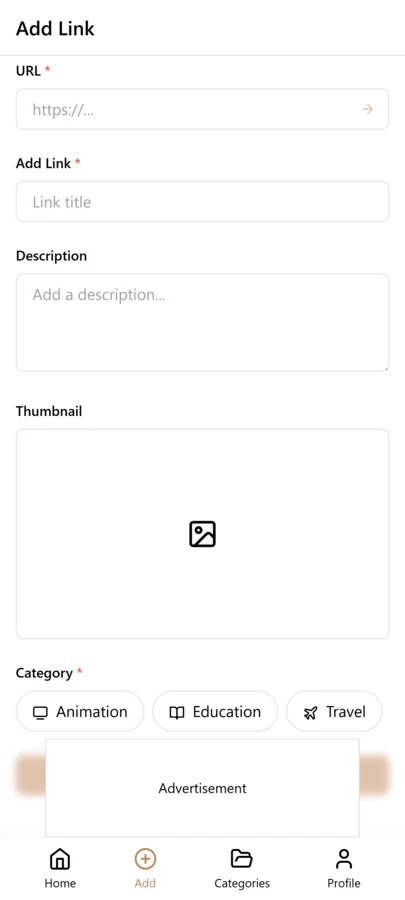
- Tap the + button to add a new link
- Paste the URL — tap the URL field, then tap Paste
- Tap the microphone icon on the keyboard and dictate a quick note: "React hooks tutorial, useEffect cleanup pattern" or "Great for the onboarding redesign"
- Tap two or three tag suggestions from the list — avoid typing tags on mobile to keep the process fast
- Tap Save
- Total time: under fifteen seconds — then return to whatever you were doing
iPhone Organization Tips
These tips come from power users who save dozens of links per week on iPhone. The common thread is that they optimize for speed at capture and do the detailed organization on desktop. The phone is for finding and saving; the desktop is for structuring and reviewing. This division of labor is what makes the system sustainable long-term without requiring you to spend five minutes on every link you save.
- Add LinkVault to your Home Screen dock so it is always one tap away — no app-switching required
- Use voice dictation for every note: tap the microphone on the iOS keyboard and speak naturally, even a fragment like "good for the launch page redesign" is enough
- Keep your category list to five or fewer: on a small screen, the fewer choices you have to make, the faster you save
- Use the tag suggestion list exclusively on mobile: avoid typing new tags on iPhone — stick to your existing vocabulary
- Trust search over browsing: on mobile, a quick keyword search is always faster than scrolling through a category or tag list
- Do your weekly review on desktop: spend ten minutes on a desktop browser each week tagging, annotating, and organizing anything you captured in a hurry
- Enable offline mode: your entire LinkVault library is available without an internet connection — useful on flights, subways, and spotty-signal situations
- Migrate your Safari bookmarks: export them from Safari Settings and import into LinkVault so everything lives in one searchable place
- Use Siri Shortcuts if available: create a shortcut that opens LinkVault directly to the Add Link screen, reducing the workflow to two taps
Building a Tagging System That Works on iPhone
Tags are the backbone of any bookmarking system, but on a small screen they can become a liability if you let them multiply. The key insight is that your tag vocabulary should be deliberately small, ideally under 15 total tags. When you have dozens of tags, you end up creating near-duplicates like "marketing" and "marketing-strategy" that fragment your library and make retrieval harder. On a phone, where typing is slow and autocomplete suggestions are your best friend, a tight tag set means you almost never have to type a new tag. You just tap the one you want from the suggestions that appear.
A good starting vocabulary covers the major dimensions of your life: work, personal, learning, reference, and maybe two or three project-specific tags. These broad categories are easy to remember and easy to apply in the few seconds you have while saving a link on your phone. If you find yourself wanting a more specific tag, resist the urge to create it on mobile. Instead, use a broad tag now and refine it during your weekly desktop review. The goal on iPhone is capture, not classification. Get the link in with one solid tag and a quick note, then sort out the finer details when you have a real keyboard.
The biggest risk to a clean tag system is creating new tags on the fly. Every time you invent a tag on your phone, you add another option to the suggestion list, which slowly erodes the simplicity that makes the system fast. LinkVault shows your existing tags as suggestions when you save, so train yourself to pick from that list. If a link genuinely does not fit any existing tag, flag it in the notes field with a keyword and decide during your desktop review whether it deserves a new tag. This discipline keeps your tag count low, your suggestions relevant, and your mobile workflow fast.
Using Siri Shortcuts for Faster Bookmark Capture
The fastest way to capture a link on iPhone is to remove as many steps as possible between seeing something worth saving and having it stored in LinkVault. Siri Shortcuts let you do exactly that. You can build a shortcut that takes whatever URL is on your clipboard and opens LinkVault directly to the Add Link screen with the URL pre-filled. This means the entire workflow becomes: copy a link in any app, trigger the shortcut, tap save. Two taps total, no navigating through menus or typing anything.
Here is a concrete example you can build in the Shortcuts app. Create a new shortcut and name it "Save to LinkVault." Add a "Get from Clipboard" action, which grabs whatever URL you last copied. Then add an "Open URL" action pointing to LinkVault with the clipboard URL passed as a parameter. If LinkVault supports a custom URL scheme, you can open the app straight to the Add Link screen with the URL already populated. Save the shortcut and add it to your home screen for one-tap access, or record a Siri phrase like "Save this link" to trigger it hands-free.
The real power here is that you can trigger the shortcut from anywhere on your phone without switching apps. If you are reading an article in Safari, a tweet in Twitter, or a video description in YouTube, you copy the link, invoke Siri or tap the home screen icon, and you are in LinkVault ready to save. You skip the Share sheet entirely, which on iPhone can be slow to load and crowded with options you never use. For people who save links constantly throughout the day, shaving a few seconds off each capture adds up to real time saved and, more importantly, fewer moments where you give up and skip saving something because it felt like too much effort.
Organizing Bookmarks by Context Instead of Topic
Most people default to topic-based organization when they start bookmarking: design, marketing, finance, productivity, and so on. This makes sense on a desktop where you have space to browse folders, but on a phone it creates a problem. When you are on your phone, you are almost always in a specific context. You are preparing for a meeting, working on a client deliverable, or killing time before a flight. You do not want all your marketing links, you want the three links you need for the client presentation tomorrow. Context-based tags solve this.
Context tags describe why you saved something and when you will need it, not what it is about. Tags like for-client-a, for-project-x, read-before-meeting, and send-to-team are far more useful on mobile than topic tags because they match the way you actually search on your phone. When you open LinkVault before a meeting, you tap read-before-meeting and immediately see the handful of links you flagged for this exact moment. You do not have to remember whether an article about email marketing was filed under marketing or productivity. The context tag tells you exactly where to look.
The shift from topic to context is also a shift in how you think about retrieval. Topic tags assume you will browse your library by category, which is a desktop habit. Context tags assume you will search with intent, which is how people actually use their phones. You can combine context tags with a few broad topic tags for long-term reference, but make context the primary lens. This approach means that even with hundreds of saved links, the ones you need right now are always one or two taps away. The effort you save on retrieval more than makes up for the slightly more intentional tagging at capture time, and your phone becomes a tool that surfaces the right information at the right moment instead of a graveyard of loosely categorized articles.
The Weekly Desktop Review: Where Organization Actually Happens
Mobile capture is fast and convenient, but it is not where organization happens. Organization happens on a desktop, where you have a full keyboard, a large screen, and the patience to think about structure. The weekly desktop review is a short, focused session where you turn the raw stream of links you captured all week into a clean, searchable library. Without this review, your bookmarks degrade into a pile of half-tagged links with vague notes that you will never be able to find again. With it, your library gets better every week.
Here is a 10-minute routine you can run every Friday afternoon. Minutes 1 to 3: open LinkVault on desktop and sort by date added, newest first. Go through every link saved this week and confirm it has at least one tag and a meaningful note. If a note is missing or vague, add one now while you remember what the link was about. Minutes 4 to 6: look for duplicates. If you saved the same article twice from different sources, merge them and keep the one with the better note. Minutes 7 to 8: review your tags. If you created any new tags this week on mobile, decide if they are worth keeping or if the links should be re-tagged under an existing category. Minutes 9 to 10: archive anything that turned out to be useless. Links you saved optimistically but never opened are just noise. Archive them so they stop cluttering your active library.
This routine works because it is short enough to actually do every week and structured enough that you do not have to think about what to do next. The key is consistency over perfection. If you miss a week, you will have twice as many links to review next time, which makes the session feel overwhelming and increases the chance you skip it again. Ten minutes a week keeps your library healthy and ensures that the next time you reach for your phone to find a link, it is actually there with the tags and notes you need to recognize it.
Migrating from Safari Reading List to a Real Library
The Safari Reading List is where links go to die. It is a chronological pile with no tags, no notes, no search, and no way to organize beyond the order in which you added them. Most people have hundreds of items in their Reading List, added over months or years, that they will never read. Migrating to LinkVault is not just a data transfer, it is a mindset shift from a pile of unread articles to a tagged, searchable library where every link has a purpose.
The practical migration steps are straightforward. On your Mac, open Safari and navigate to your Reading List. There is no built-in export function, but you can use a shortcut or script to extract the URLs. One approach is to open each Reading List item in a tab and copy the URLs, or use a tool that reads the Reading List plist file where Safari stores them. Once you have your URLs, import them into LinkVault in bulk. LinkVault accepts bulk imports, so you can paste or upload a list of URLs and they will be added to your library as untagged entries ready for review.
The harder part is deciding what to do with the hundreds of unread items you have accumulated. Do not try to tag and organize all of them at once. That is a recipe for burnout. Instead, import everything into LinkVault as untagged, then process them in batches during your weekly desktop review. For each item, ask one question: would I still save this today? If yes, give it a tag and a note. If no, archive it. You will find that a surprising number of links you saved months ago are no longer relevant, and that is fine. The goal is not to preserve everything, it is to build a library of links you will actually use. Most people end up archiving 60 to 80 percent of their old Reading List and feel relieved, not regretful, afterward.
Common iPhone Bookmarking Mistakes and How to Fix Them
The most common mistake is creating too many categories on mobile. When you are saving a link on your phone and it does not quite fit your existing tags, the temptation is to create a new one. Over time this leads to tag sprawl, where you have 40 tags and no two links share the same combination. The fix is simple: on mobile, only use existing tags. If a link does not fit, use the closest broad tag and add a note. Create new tags only during your desktop review, when you can see your full tag list and decide deliberately.
Another frequent mistake is typing tags from scratch instead of using the suggestions LinkVault provides. Typing on a phone is slow and error-prone, and hand-typed tags lead to typos that create phantom duplicate tags. "marketing" and "marketng" are two different tags in a system that does not autocorrect. The fix is to always tap from the suggestion list. LinkVault shows your existing tags as you type, so even one or two characters will bring up the right option. Train yourself to never fully type a tag on mobile. If it is not in the suggestions, it probably should not be a new tag yet.
A third mistake is trying to do full organization on a small screen. Mobile is for capture, desktop is for organization. If you find yourself spending more than 30 seconds on a single link on your phone, you are doing the desktop's job in the wrong place. Save it with one tag and a short note, and move on. A fourth mistake is never doing a desktop review at all, which means your library slowly fills with untagged, unnoted links that are impossible to find. And finally, saving without any notes at all is a mistake that makes every future search harder. A link with no note is just a URL you will not recognize in three weeks. Even one sentence of context, typed in the few seconds you have, makes a link infinitely more retrievable.
Frequently Asked Questions
Can I save from Safari, Twitter, Instagram, YouTube, and other apps?
Yes — any app that has a Share button or a Copy Link option works with this workflow. In Safari, tap the Share icon in the toolbar. In Twitter, tap the Share icon under a tweet and then Copy Link. In YouTube, tap Share > Copy Link. In Instagram, tap the three dots on a post and then Copy Link. Once the link is in your clipboard, open LinkVault and paste it. The entire process takes under fifteen seconds from any app.
Do I need to organize everything on my phone?
No — and trying to do so will make the system too slow to maintain. The right approach is quick capture on iPhone and detailed organization on desktop. When you save a link on iPhone, add one sentence of voice-dictated notes and two or three tag suggestions. That is enough to make the link findable later. Once a week, open LinkVault on your desktop, filter by recent saves, and spend ten minutes adding more detailed notes, adjusting tags, and organizing anything you captured in a hurry. This split keeps mobile saving fast and your library clean without either one feeling like work.
Does it work offline on iPhone?
Yes. LinkVault works fully offline on iPhone — you can browse your saved links, search, and read notes without any internet connection. Links saved while offline are queued and synced to your account automatically when you reconnect, whether that is via wifi or cellular. This makes it reliable on flights, subways, remote areas, or anywhere else your signal is unreliable.
How do I migrate my existing Safari bookmarks into LinkVault?
Go to Safari on your iPhone, then Settings > Safari > Export Bookmarks. This creates an HTML file in your iCloud Drive. Open LinkVault on desktop, go to your profile settings, and use the Import function to upload that HTML file. All your Safari bookmarks will be imported with their titles and URLs. You can then add notes and tags to the ones you actually use. This process takes about five minutes and means your entire bookmark history becomes searchable in one place.
Can I use Siri Shortcuts to save links to LinkVault hands-free?
Yes, you can set up Siri Shortcuts that let you save links to LinkVault almost entirely hands-free. The most reliable approach is to create a shortcut that reads the URL from your clipboard and opens LinkVault with that URL pre-filled on the Add Link screen, which you trigger by saying a phrase like "Save this link" to Siri. The one caveat is that you need to copy the link first in whatever app you are browsing, so it is not fully automatic, but it reduces the entire process to a copy action and a voice command. You can also add the shortcut as a home screen icon for one-tap access when you cannot use voice, making it the fastest way to capture links on iPhone without switching apps or fumbling through the Share sheet.
How do I handle bookmarks for apps that don't have a Share button?
Some apps do not expose a Share button or make it hard to grab a link directly, but you still have options. The simplest workaround is to copy the URL from the app if it offers a "Copy Link" option in a menu, then use your Siri Shortcut to send it to LinkVault, and for apps with no shareable URL at all, take a screenshot and save a note in LinkVault describing what the app is and why you want to remember it. For apps that have a web equivalent, you can open the web version in Safari, copy the URL, and save that instead. The key is to capture enough context in the note field that you can find the link later even if the original app changes or the deep link breaks, since LinkVault's search covers notes as well as titles, so a good note often matters more than the URL itself.
What is the fastest way to add notes on iPhone?
Voice dictation is by far the fastest method. When you are in the notes field in LinkVault, tap the microphone icon on the bottom-left of the iOS keyboard and speak your note naturally. iOS transcribes it in real time and you can correct any mistakes by tapping the text. A spoken note like "Great analysis of React server components — useful for the architecture decision next month" takes about four seconds to dictate and gives you enough context to find and use the link months later. This is dramatically faster than tapping out a note on a small keyboard.