How to Save Email Links: Why 'I'll Just Search My Inbox' Fails
Written by LinkVault Team
We have all done it. A link lands in your inbox — a product page, a research paper, a flight deal — and you tell yourself the same thing every time: I will just search my inbox later. It feels sensible. Your inbox is searchable, the email is right there, and surely you will remember a keyword or two when you need it. Except you will not. Not reliably. Not months later when the link actually matters. The reality is that email was designed for communication, not for storage. It has no tagging, no categorization, no notes field, and no search that prioritizes links over messages. Every link you leave in your inbox is a link you will struggle to find again. In this guide, the LinkVault team dismantles four myths that keep people using their inbox as a bookmark folder — and shows how linkvault solves each one with a system built specifically for link retrieval.
Myth 1: 'I Will Just Search My Inbox Later'
This is the most common rationalization, and it sounds perfectly logical — until you actually try it weeks later. Email search is built for finding messages, not for finding links. When you search your inbox, you are matching against subject lines, sender names, and body text. A URL buried inside a long reply chain may never surface with the vague keyword you half-remember. Worse, email search ranks results by recency and message relevance, not by the link itself. You end up scrolling through dozens of hits, opening messages one at a time, hoping to spot the URL you saved.
Consider a concrete scenario: three weeks ago, a colleague emailed you a link to a pricing page for a SaaS tool you were evaluating. The email subject line was "Re: Q3 tool budget" — nothing about the tool name or pricing. Today you need that link. You search "pricing" and get forty results: every email that mentions the word pricing, from vendor quotes to internal budget threads. The link you need is in there somewhere, but you have to open each email to check. After ten minutes of clicking, you either find it or give up and Google the tool from scratch. LinkVault flips this model entirely. When you save a link to linkvault, it becomes a first-class, searchable object — indexed by title, tags, your own notes, and the page content. You search "saas pricing" and the link appears in seconds, with your note reading "Tool Sarah recommended, $49/mo team plan" so you know instantly it is the right one.
Myth 2: 'Emailing Myself a Link Is Fine'
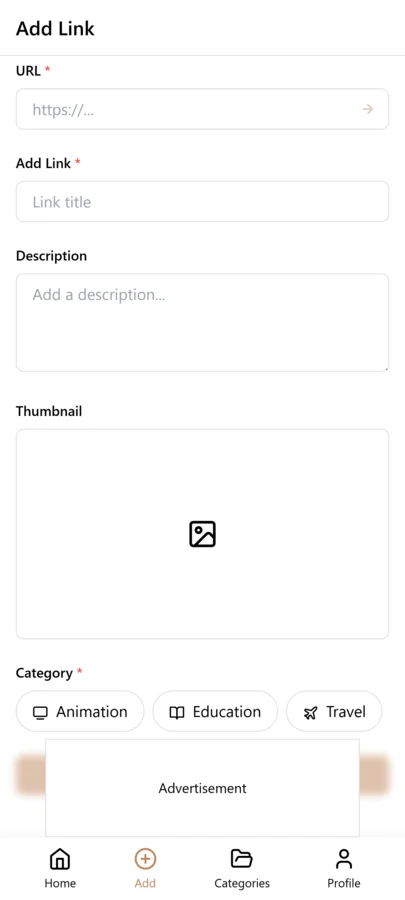
Emailing yourself a link feels like a clean, lightweight solution. No app to install, no account to manage — just fire off a quick message and move on. But self-emails pile up fast. Within weeks your inbox is littered with subject lines like read this, check later, and simply link. There is no context, no tags, and no way to group related links together. Every self-email is a link with no memory of why you saved it. You have essentially built a second, messier inbox inside your first one. The screenshot below shows the cleaner alternative: instead of leaving a useful link buried in a self-addressed email, you capture it straight into LinkVault, where it gets a real title, descriptive tags, and a permanent, searchable home.
The deeper problem with self-emailing is that it fragments your attention. Every self-email you send is an unread message that clutters your inbox and creates a low-level anxiety about messages you have not dealt with. Your inbox becomes a mix of real correspondence and a shadow to-do list of links you intend to revisit. The two compete for the same visual space, and the links lose because they look like emails, not like references. LinkVault separates links from messages entirely. A link saved to linkvault lives in a dedicated library where it belongs, leaving your inbox for actual communication. The mental clarity alone is worth the switch — your inbox becomes smaller, your link library becomes richer, and neither one contaminates the other.
Myth 3: 'I Do Not Save Enough Links to Need a Tool'
You might assume bookmark managers are for power users — researchers, developers, and content creators who hoard hundreds of links. If you only save the occasional article or product page, surely your inbox can handle that volume. But link accumulation is sneakier than it looks. A recipe here, a gift idea there, a software doc page, a YouTube tutorial — within a few months you have quietly saved dozens, and they are now scattered across email, browser bookmarks, chat apps, and sticky notes. The fragmentation is the real problem, not the volume. When your links are spread across five different systems, finding any one of them requires remembering not just what the link was but where you saved it. That cognitive overhead is what makes "I only save a few links" feel like a manageable situation until it suddenly is not. linkvault scales gracefully with you. Whether you save five links a month or five hundred, LinkVault gives each one the same searchable, taggable, organized treatment — so the system works identically at week one and year three.
Myth 4: 'My Email Folders Are Organized Enough'
If you are a meticulous inbox organizer — folders, labels, color-coded rules — you might assume your system already doubles as a link library. But email folders are designed for correspondence, not for references. Your folders reflect conversations, not topics. A link shared inside a thread about a vendor negotiation gets filed under that project, not under design inspiration or tools to evaluate. When you later need that same link for an entirely different purpose, the folder structure actively works against you. LinkVault decouples links from their original context. A link saved from any email can be tagged, categorized, and searched independently of where it came from. Your email folders stay for email; linkvault stays for links — and both work better for it.
The fundamental mismatch is this: email folders organize by sender, subject, and conversation thread — dimensions that describe the message, not the link. But when you are looking for a link, you think in terms of the link itself: what is it about, what project is it for, what type of resource is it. Those are the dimensions linkvault uses. A single link can carry multiple tags — design, tools, vendor-research — so it surfaces no matter which dimension you filter by. In your email, that same link is trapped under one folder name based on the conversation it arrived in, and if you do not remember that conversation, the link is effectively invisible.
How to Save an Email Link into LinkVault
The process takes less than ten seconds once you are in the habit. Here is the exact workflow for pulling a link out of any email and giving it a permanent, searchable home.
- Open the email containing the link you want to save.
- Copy the URL from the email body by highlighting it and using your copy shortcut or right-click menu.
- Open LinkVault in your browser or app and tap the Add Link button.
- Paste the URL into the link field — LinkVault auto-fetches the page title and description preview.
- Add a one-line note explaining why this link matters, such as "Pricing page for the analytics tool Mark recommended in the Q3 budget thread".
- Assign tags that describe the link itself, not the email it came from — for example, analytics, pricing, tools-to-evaluate.
- Choose a category that matches the link subject, such as Work or Research, so it lives alongside related links.
- Tap save. The link is now in your LinkVault library, fully searchable by title, note, tag, or category — independent of the original email.
Separating Work Links from Personal Links
One of the biggest advantages of moving email links into LinkVault is the ability to cleanly separate professional and personal resources. In your inbox, work and personal links intermingle freely — a vendor pricing page sits between a friend restaurant recommendation and a flight confirmation. There is no clean way to filter one from the other without creating elaborate email rules that you then have to maintain. In LinkVault, the separation is structural. Create a Work category for professional links — vendor pages, industry articles, internal docs, project resources — and a Personal category for everything else — recipes, travel deals, gift ideas, hobby resources. When you save a link, you file it in the right category at save time, and from that point on, filtering by category shows you only the links you want. This is not just about tidiness; it changes how you use your library. When you are working, you open your Work category and see only professional resources with zero personal noise. When you are planning a weekend trip, you open Personal and see only leisure links. The context switch is instant and effortless, which makes you far more likely to actually use what you saved instead of re-searching from scratch.
Creating a Weekly Email-Link Sweep Habit
Even the best link-saving system breaks down if you never actually use it. The key to keeping your email links organized is building a short, repeatable weekly habit that catches the links you did not save in real time. Set aside ten minutes every Friday afternoon, or whatever day marks the end of your work week, and do a focused sweep of your inbox. Open each folder or label you actively use and scan for links you intended to save but never did — a product page in a vendor thread, a documentation link in a developer newsletter, a restaurant recommendation from a friend. For each one, copy the URL into LinkVault, add a note and tags, and save it.
The sweep works because it is bounded and predictable. Ten minutes is short enough that you will actually do it, but long enough to catch the handful of links that slip through during a busy week. Over a month, that is roughly forty links that would otherwise be lost to inbox drift. The other advantage of a weekly sweep is that it keeps your inbox cleaner. Once you have saved a link to LinkVault, you can confidently archive or delete the email that carried it, knowing the link is safe in your library. Your inbox shrinks, your link library grows, and the two systems stop competing for your attention. Treat the sweep like a recurring meeting with yourself — put it on your calendar, set a reminder, and do not skip it for more than two weeks in a row or the backlog becomes discouraging.
Handling Links from Newsletters and Promotional Emails
Newsletters and promotional emails are a special category of link source because they arrive in volume, often daily, and carry a mix of genuinely useful resources and marketing noise. The trick is to triage them the moment they arrive rather than letting them accumulate. When you open a newsletter, scan it for one or two links that are actually worth keeping — an article you want to read, a tool you want to evaluate, a resource relevant to a current project. Save those to LinkVault immediately with a note identifying the newsletter as the source, then archive the email. You do not need to save every link in every newsletter; saving the two or three that matter is far more valuable than bookmarking all of them and never returning to any.
For promotional emails, the same principle applies but with an added layer of skepticism. Sale links, limited-time offers, and product launch pages often expire or change, so if a promotional link is genuinely useful — a discount code page, a product comparison, a free resource download — save it to LinkVault and add a note about the deadline or expiration if there is one. This way you can search later and see at a glance whether the offer is still relevant. Tagging newsletter and promo links with a source tag like newsletter or the publication name makes it easy to filter them later. If you find that a particular newsletter consistently delivers links you end up using, that tag also tells you which subscriptions are worth keeping and which you can safely unsubscribe from.
Building a Tagging System for Email-Sourced Links
Tags are what transform your email-saved links from a flat list into a navigable library. When you save a link from an email, the subject line and sender tell you nothing about the link itself — but tags give you the dimensions you actually search by. The key is to build a tagging system that reflects how you think about links, not how your inbox organizes messages. Start with content-type tags that describe what the link is: article, tool, doc, video, pricing, registration. Then add topic tags that describe what the link is about: analytics, design, travel, legal, finance. Finally, add source tags that tell you where the link came from: newsletter, colleague, client, vendor.
The combination of these three tag types makes every link findable from multiple angles. A pricing page for an analytics tool shared by a colleague in a budget thread gets tagged article, analytics, tools-to-evaluate, colleague — and you can find it by searching for any of those dimensions. The most common mistake is skipping tags entirely because the link seems memorable at save time. It never is. Three weeks later, a URL with no tags and a generic auto-fetched title is effectively invisible in your library. Spend the extra five seconds to add at least one topic tag and one source tag before saving — your future self will thank you every single time.
Handling Links Across Multiple Email Accounts
Many professionals juggle two or three email accounts — a work account, a personal account, and sometimes a side-project or educational account. Each inbox accumulates links independently, and the result is a fragmented landscape where you cannot remember which account received which link. LinkVault solves this by being account-agnostic: every link goes into the same unified library regardless of which inbox it came from. The trick is to tag each link with its source account so you can filter by origin when needed.
When saving a link from your work inbox, add a tag like work-email or the account name. From your personal account, use personal-email. This simple convention lets you answer questions like "what links did my work inbox surface last month?" without switching between email providers. It also helps during account transitions — if you change jobs or close an old account, you can filter by that account tag and verify that every important link has been preserved in LinkVault before you lose access to the inbox. The source-account tag also reveals patterns: if your personal inbox produces far more useful links than your work inbox, that tells you something about where your most valuable information is actually coming from.
Migrating from Inbox-as-Bookmark to a Real System
If you have been using your inbox as a de facto bookmark folder for months or years, the backlog can feel overwhelming. The key is to migrate incrementally rather than attempting a massive one-day cleanup. Start by exporting your email or creating a dedicated search filter for messages containing URLs. Then work through the most recent month first — those links are freshest in your memory and most likely to still be relevant. For each link, copy the URL into LinkVault, add a note about why you saved it, apply tags, and save. Once the link is in LinkVault, archive the email.
After handling the most recent month, work backwards in weekly batches. Do not try to save every link you ever received — most old email links are stale, expired, or no longer relevant. Apply a strict relevance test: would I actually look for this link again? If the answer is not a confident yes, skip it. Within a few sessions, you will have migrated the links that matter, and your inbox will be noticeably lighter. The links you did not migrate are not lost — they are still in your archived email — but they are no longer cluttering your active LinkVault library. This incremental approach is sustainable and prevents the burnout that comes from trying to clean up years of email in one sitting.
Monthly Review Habit for Email Links
A weekly sweep catches the links you missed during the week, but a monthly review ensures your library stays clean and relevant over the long term. Set aside thirty minutes at the end of each month and open LinkVault filtered to your email-sourced tags. Scan through the links you saved that month and ask three questions for each one: Is this still relevant? Did I act on it? Does the note or tags need updating?
For links you acted on, update the note with the outcome — "evaluated this tool, chose it, onboarding next week" — so the entry becomes a record of your decision, not just a saved link. For links that are no longer relevant — a deadline that passed, a product you decided against, an article you read and internalized — delete them without hesitation. A curated library is more valuable than a bloated one. For links that are still relevant but not yet acted on, add a to-do tag so they surface in your next planning session. The monthly review also reveals patterns: if you saved twenty vendor pricing links but never evaluated any of them, that tells you something about your procurement workflow. The review is not just cleanup — it is a feedback mechanism that makes your saving habits more intentional over time.
Common Email Link Saving Mistakes and How to Fix Them
Even with a solid workflow, certain habits undermine the usefulness of your email link library over time. The mistakes below are the ones that most frequently erode the quality of an email-sourced link collection, and each one has a straightforward fix that takes only a few extra seconds per link. Review this list periodically as a self-audit, especially if you have been saving links in a hurry or skipping your weekly sweep.
- Saving links without any note: A URL alone tells you nothing weeks later. Always add at least a one-line note explaining why the link mattered and who shared it before you save.
- Using the email subject as the link title: The auto-fetched page title is almost always more descriptive than the email subject. Let LinkVault fetch the real title and only override it if the page heading is vague.
- Tagging with the email folder name instead of the link topic: Tags should describe the link, not the email it came from. Use analytics or tools-to-evaluate, not Q3-budget-thread.
- Saving every link from every newsletter: Most newsletter links are not worth keeping. Save only the one or two that are genuinely relevant to your work or interests, and archive the rest.
- Never reviewing or deleting old links: A library that only grows is a library that becomes harder to search. Monthly reviews keep your collection curated and ensure search results are relevant.
Sharing Email-Sourced Links with Your Team
Email is inherently a one-to-one communication channel, but the links you receive are often valuable to your entire team. A pricing page shared by a colleague, a documentation link from a vendor, a competitor analysis article from a newsletter — these are resources your teammates would benefit from but will never see because they are trapped in your inbox. LinkVault turns email-sourced links into shareable team resources. When you save a link, tag it with your project name or team name, and anyone in a shared LinkVault workspace can find it instantly.
For teams that are not on a shared workspace, you can still share curated link lists. Filter your library by a project tag, export the results, and send the list via email or Slack. The export carries your notes and tags, which gives your teammates far more context than forwarding the original email ever would. This is especially valuable for project onboarding — instead of forwarding ten separate emails to a new team member, you share a single LinkVault filter that surfaces every relevant link in one view. The shift from email-as-bookmark to LinkVault-as-library does not just help you find links faster — it makes your entire team smarter by turning individual inbox discoveries into shared team knowledge.
Frequently Asked Questions
Can I save links from email directly into LinkVault?
Yes. LinkVault works with any link you can copy and paste — it takes about five seconds per link. You copy the URL from the email, open linkvault, click Add Link, paste, tag, and save. The link is then fully searchable and independent of the original email.
What if I have been emailing myself links for years already?
You are not stuck. LinkVault supports bulk import, so you can pull in years of self-emailed links and tag them retroactively. It is a one-time cleanup that pays dividends every single time you search afterward. The best approach is to import everything, then spend a focused session tagging the most important links first — you do not have to tag all of them in one sitting.
How do I handle links shared in work email threads?
When a colleague shares a useful link in an email thread, copy it into LinkVault immediately and tag it with the project name and a content-type tag like reference or doc. Add a note about who shared it and in what context, such as "From Sarah in the Q3 budget thread, pricing for the analytics tool we are evaluating." This way the link is findable by project, by person, or by topic — not just by the email subject line you will never remember.
Should I delete the email after saving the link to LinkVault?
Not necessarily. The email still contains the conversation context, which may be valuable on its own. But once the link is in linkvault, you no longer need to keep the email for the purpose of finding the link. Many users keep the email for the discussion but rely on LinkVault for link retrieval, which eliminates the pressure to search through old threads for URLs.
Can I organize links from different email accounts in one place?
Yes. LinkVault is not tied to any email provider. Whether a link arrives in your work Gmail, personal Outlook, or a secondary account, you copy and paste it into the same linkvault library. This is especially useful for people who juggle multiple email accounts and currently have links scattered across all of them. LinkVault becomes the single unified library that replaces fragmented inbox bookmarking across every account you own.
How do I keep up with links from newsletters I subscribe to without getting overwhelmed?
Triage newsletters at the moment you read them rather than saving them for later. Open each issue, scan for the one or two links that are genuinely relevant to your work or interests, save those to LinkVault with a newsletter source tag, and archive the email immediately. You do not need to save every link — curating ruthlessly is what keeps your library usable. If you let newsletters pile up, the backlog becomes intimidating and you will eventually delete them all without saving anything. A few seconds per useful link, done consistently, is far more sustainable than a monthly cleanup session.
What is the best way to handle links shared in email threads where multiple people reply with different URLs?
When a thread contains multiple links from different people, save each link individually with its own note and tags rather than trying to capture the entire thread at once. For each link, note who shared it and in what context — "pricing page shared by Sarah in Q3 tool evaluation thread" — so the source is preserved even after the link leaves the email. If two links are directly related to the same decision, tag them with the same project tag so filtering by that tag surfaces both together. Avoid saving the email thread URL itself as a substitute for the individual links — thread URLs are fragile, context-heavy, and impossible to search by content. Individual link saves with proper notes are always more retrievable than a link to a thread that you then have to re-read to find the actual URL.