How to Save Google Maps Locations (Step-by-Step)
Written by LinkVault Team
Google Maps is one of the most powerful tools for discovering new places, but saving those places in a way that is easy to find later can be a challenge. When you bookmark a location directly in Google Maps, you get a star on a map and not much else. There is no room for notes, no way to group related spots together, and no search function that helps you remember why you saved that ramen shop six months ago.
LinkVault fills that gap by turning your saved Google Maps locations into a rich, searchable, and organized library. Every saved location becomes more than just a pin: you can attach notes, tag it with keywords like date-night or kid-friendly, and sort it into categories such as Restaurants, Hotels, or Parks. When you are planning a trip or trying to remember that great coffee shop from last summer, LinkVault makes it easy to find exactly what you need in seconds.
This guide walks you through the entire process, from copying the right URL to organizing your collection into something you can actually use. Whether you are building a list of must-visit restaurants in your own city or planning a two-week trip across Europe, the steps below will help you get the most out of every saved location. By the end you will know how to capture links, enrich them with context, sort them into categories, and share them with friends and family.
Why Save Google Maps Locations in a Bookmark Manager?
Google Maps lets you star a location, save it to a list, or label it with a custom name. These features are convenient when you just need to remember where something is, but they fall short when you want to build a real library. There is no way to attach detailed notes, no tagging system, and no way to search across all your saved places by keyword or category.
LinkVault solves these problems by giving you a dedicated space for your saved locations. Instead of a flat list of starred places, you get a structured database where each location is a full entry with its own notes, tags, and category. You can search across everything, filter by tag or category, and share collections with friends. The result is a system that grows more useful over time rather than turning into an unreadable pile of pins.
Consider a common scenario: you visit a new city and someone recommends a dozen restaurants and sights, so you star them all and tell yourself you will sort them out later. But later never comes, and by the time you return you cannot remember which star was the bakery and which was the cocktail bar. With LinkVault, you save each place with a quick note about who recommended it and why, and the context is right there waiting for you months later.
Getting Started with LinkVault
Before you can start saving locations, you need a LinkVault account and the browser extension. Head to the LinkVault website and sign up for a free account, which supports up to five hundred bookmarks. Then install the LinkVault browser extension for Chrome, Firefox, or Edge, which lets you save a page with a single click instead of copying URLs manually.
After installing the extension, set up your categories. A few good starting categories are Restaurants, Hotels, Coffee Shops, Parks, and Sights. Having these ready before you start saving means you will not have to reorganize everything after the fact. Think about the types of places you save most often and create categories that match your habits.
You should also configure your default tags. Tags are freeform labels you can apply to any bookmark, and they are especially powerful for location data. Good default tags include want-to-visit, visited, recommended, and favorite. Tags cut across categories, so a restaurant and a hotel can both share the want-to-visit tag. Finally, enable the auto-fill option so LinkVault can pull the place name and address from the Google Maps page automatically.
Saving Your First Google Maps Location
Saving a Google Maps location into LinkVault takes less than thirty seconds once you have the extension installed. The key is to make sure you are on the right page before you click save, because the URL you capture determines how much information LinkVault can auto-fill.
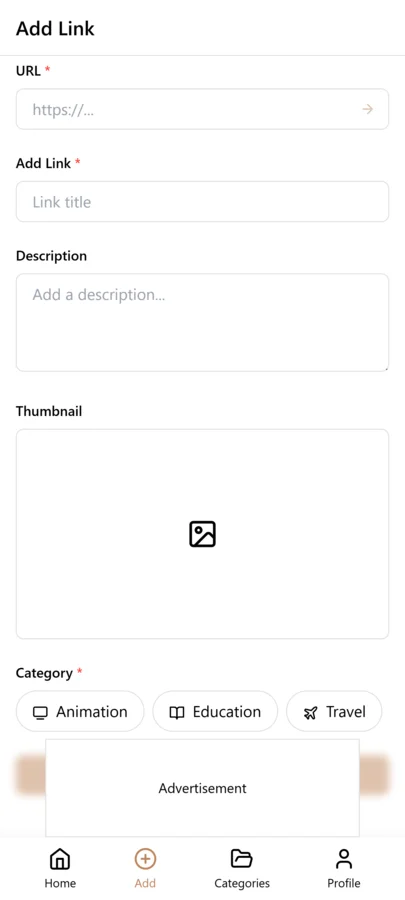
- Open Google Maps in your browser and search for the place you want to save
- Click on the place name in the search results to open its full listing page
- Make sure the URL in your address bar contains the place name and coordinates rather than a search query
- Click the LinkVault extension icon in your browser toolbar
- Review the auto-filled title and address, then edit them if needed
- Select a category from the dropdown menu, such as Restaurants or Hotels
- Add any tags that apply, like want-to-visit or recommended-by-friend
- Type a short note in the notes field about why you are saving this place
- Click Save and your location is now stored in your LinkVault library
Organizing Saved Locations with Categories and Tags
Categories and tags are the two organizing tools in LinkVault, and understanding the difference is key to building a library that stays manageable. Categories are broad buckets that describe what type of place something is: a restaurant, a hotel, a park. Every bookmark belongs to exactly one category. Tags are flexible labels that describe attributes, status, or context, and a bookmark can have any number of them.
Think of categories as the shelves in a library and tags as the sticky notes on individual books. A restaurant goes on the Restaurants shelf, but it might have tags for outdoor-seating, dog-friendly, and brunch. When you want to find a restaurant with outdoor seating where you can bring your dog, you filter by the Restaurants category and the relevant tags. This two-layer system gives you both structure and flexibility, and it scales well as your collection grows.
A common mistake is using categories too narrowly. If you create a separate category for every cuisine type, you end up with dozens of categories that each contain only a few bookmarks. Instead, keep all restaurants in one category and use tags for cuisine: italian, japanese, mexican. Another useful technique is a status tag workflow with tags like want-to-visit, visited, and favorite to track where each location is in your personal journey.
Adding Notes and Context to Your Saved Spots
The notes field is where LinkVault truly separates itself from basic bookmarking. A saved URL with a title tells you what a place is called and where it is, but notes tell you why you care. Good notes turn a forgettable pin into a vivid memory or a clear plan, so the goal is to write enough context that when you come back months later, you immediately understand what it is and what you want to do with it.
There are a few types of information worth capturing. First, provenance: who told you about this place? A note like "Recommended by Sarah from her Tokyo trip report" gives you a trail back to the source. Second, specifics: what dish or experience made this place worth saving? Instead of "good restaurant", write "get the tsukemen and arrive before noon to avoid the line". Third, logistics: opening hours, reservation requirements, or neighborhood notes.
Notes are also where you record your own experiences after visiting. Once you have been to a restaurant, go back to the bookmark and add a follow-up note about what you ordered, what you liked, and whether you would return. These post-visit notes are invaluable when you find yourself back in the same city or when a friend asks for a recommendation. Keep your notes concise but specific, and avoid vague language like "nice place" without any supporting detail.
Real-World Scenarios: Restaurants, Hotels, and Trips
Different types of places call for different approaches when saving them in LinkVault. A restaurant you want to try this weekend needs different notes and tags than a hotel you are considering for a trip next year. The table below breaks down how to handle the most common types of Google Maps locations you will save.
| Location Type | Recommended Category | Suggested Tags | Key Notes to Include |
|---|---|---|---|
| Restaurant | Restaurants | want-to-visit, cuisine | Signature dishes, price range, reservation policy, who recommended it |
| Hotel | Hotels | want-to-visit, budget-tier | Room types, amenities, neighborhood, nightly rate |
| Coffee Shop | Coffee Shops | want-to-visit, wifi | Roaster, seating, outlets, opening hours |
| Park or Garden | Parks | outdoor, free, seasonal | Best season, entrance points, highlights |
| Museum or Gallery | Sights | indoor, ticket-required | Must-see exhibits, ticket prices, free days |
| Bar or Nightlife | Restaurants | nightlife, cocktail | Signature drinks, vibe, dress code, peak hours |
Tips for Maintaining Your Location Library
A location library is only as good as its upkeep. Over time, places close, move, or change, and your bookmarks can become stale if you do not maintain them. Set aside time every few months to review your collection and prune entries that are no longer relevant. If a restaurant has closed or a hotel has changed management, either update the bookmark with a note or delete it entirely. A lean, current library is far more useful than a bloated one full of dead links.
One effective strategy is to review your want-to-visit tags periodically. If a place has been sitting in your want-to-visit list for over a year and you have not made plans to go, ask whether you still want to visit it. Some places are genuinely aspirational and worth keeping, but many are just noise. Removing the ones you will never get to keeps your planning lists focused and actionable.
Another habit worth building is adding visit notes immediately after you go to a place, while the details are still fresh. Finally, do not be afraid to reorganize as your library grows and your original categories no longer fit. LinkVault makes it easy to move bookmarks between categories and bulk-edit tags, so a reorganization does not have to be a massive project.
Building a Travel Itinerary from Saved Locations
One of the most satisfying uses of LinkVault is turning a pile of saved locations into an actual travel itinerary. The process works best when you start with a trip tag. Before you begin researching a destination, create a tag like iceland-summer-2026 and apply it to every location you save for that trip. This creates a single filterable collection that grows as you research, and when it is time to plan your days, everything is already in one place.
Once you have a solid collection, sort them geographically. Group locations by neighborhood or region to understand which places are close together and can be visited on the same day. A well-saved LinkVault collection with good address data makes this step much faster, because you already have the coordinates and addresses ready to plot on a map.
After grouping locations, assign each one to a day of your trip using day tags like day-1 and day-2. Keep your daily plans realistic: two or three major sights per day plus a restaurant for lunch and dinner is a good baseline. When the trip is over, update your tags from want-to-visit to visited and add post-trip notes, building a personal travel database that gets richer with every journey.
Common Mistakes When Saving Google Maps Locations
Even with a great tool like LinkVault, a few common habits can undermine your location library. Avoid these mistakes to keep your collection clean, searchable, and useful over the long term.
- Saving from search results instead of the full listing page, which captures the wrong URL
- Leaving the notes field empty, so months later you have no idea why you saved the place
- Creating too many narrow categories instead of using tags for fine-grained organization
- Forgetting to add a trip tag when saving locations for a specific destination
- Saving duplicates because you did not search your library first
- Using vague tags like good or interesting that do not help you filter later
- Never updating tags after visiting a place, so your want-to-visit list grows forever
- Saving locations without checking the address, which leads to plotting the wrong pin
- Ignoring closed or moved businesses until you show up and find them gone
- Not backing up or exporting your LinkVault data periodically as a safety net
Sharing Location Collections with Travel Companions
Travel is better when it is shared, and LinkVault makes it easy to collaborate with friends and travel companions on location collections. Instead of sending a chaotic stream of Google Maps links in a group chat, you can create a shared collection that everyone can browse, contribute to, and reference during the trip. This turns location planning from a solo activity into a group effort where everyone has a stake in the itinerary.
To share a collection, use the LinkVault sharing feature to create a shared folder or tag group. You can invite specific people by email or generate a shareable link. If you are planning a trip with friends, create a shared tag like group-trip-lisbon and ask everyone to save their recommended locations under that tag. Each person can add their own notes about why they recommend a place, giving the group a richer set of information than any single person could compile alone.
Shared collections work best when you establish a few simple conventions upfront. Agree on a naming pattern for tags, decide whether everyone can edit or one person acts as curator, and set a deadline for adding locations. During the trip, the shared collection becomes a living document anyone can pull up on their phone. You can also share ongoing collections with a partner for restaurants to try in your own city.
Frequently Asked Questions
Can I save locations from the Google Maps mobile app?
Yes. You can save locations from your phone by copying the share link from the Google Maps app and pasting it into the LinkVault mobile web interface. Open the place in Google Maps, tap Share, copy the link, and paste it into a new bookmark. The auto-fill feature will pull the name and address from the link just as it does on desktop.
How do I find a saved location if I only remember the neighborhood?
Use the search bar in LinkVault and type the neighborhood name. If you tagged the location with a neighborhood or city tag, you can also filter by that tag. Adding a geographic tag when you save a location makes it much easier to find later, so get in the habit of including one on every bookmark.
Is there a limit to how many Google Maps locations I can save in LinkVault?
The free tier supports up to five hundred bookmarks total, including Google Maps locations and any other bookmarks. If you need more capacity, the Pro plan removes the limit entirely. Most users find that five hundred is plenty for getting started, and upgrading becomes worthwhile once your library grows past that point.
Can I import my existing Google Maps starred places into LinkVault?
Yes. Export your saved places from Google Maps using the Takeout feature, which gives you a KML file. Then use the LinkVault import tool to upload it, and each starred place becomes a new bookmark. After importing, assign categories and tags to the imported locations since they will come in without any organization.
How do I plan a multi-city trip using saved locations in LinkVault?
Create a master trip tag for the entire journey, such as europe-summer-2026, and then add a city tag for each destination, such as paris, lyon, and nice. Every location gets both the master trip tag and the city tag. When planning, filter by the master tag to see your full collection, then filter further by a city tag to focus on one destination at a time.
Can I share a collection of saved locations with someone who does not have a LinkVault account?
Yes. LinkVault lets you generate a public shareable link for any collection. Anyone with the link can view the locations, notes, and tags in their browser without needing to sign up. If they want to save their own copies, they can create a free account and import the shared collection into their own library with one click.
What is the best way to organize saved locations by city?
Use a city tag on every location you save, such as tokyo, new-york, or lisbon. Do not create separate categories for each city, since that would make your category list unmanageable. Instead, keep categories focused on place types like Restaurants and Hotels, and use city tags to filter within a category. This way you can view all restaurants in Tokyo by filtering the Restaurants category with the tokyo tag.