How to Save PDF Links: A Step-by-Step Guide with LinkVault
Written by LinkVault Team
PDFs are everywhere — research reports, vendor contracts, equipment manuals, academic papers. The challenge is not downloading them; it is remembering where you found each one, what it contained, and whether you have the latest version. LinkVault turns every PDF URL into a searchable, annotated bookmark you can retrieve weeks or months later. Whether you are managing compliance documents or collecting research for a project, this guide walks you through saving PDF links in LinkVault step by step.
Why PDF Links Need More Than a Title
Most bookmark managers treat a PDF like any web page: they store the URL and the page title. But a title like document_2024_final_v3.pdf tells you nothing useful months later. LinkVault takes a different approach. When you save a PDF link, you add a descriptive note about what the document contains. That note becomes searchable text, so you can find the PDF by searching concepts instead of filenames. This is what makes linkvault valuable for document-heavy workflows.
Step 1: Save the PDF URL
Follow these steps to save any PDF link to your library.
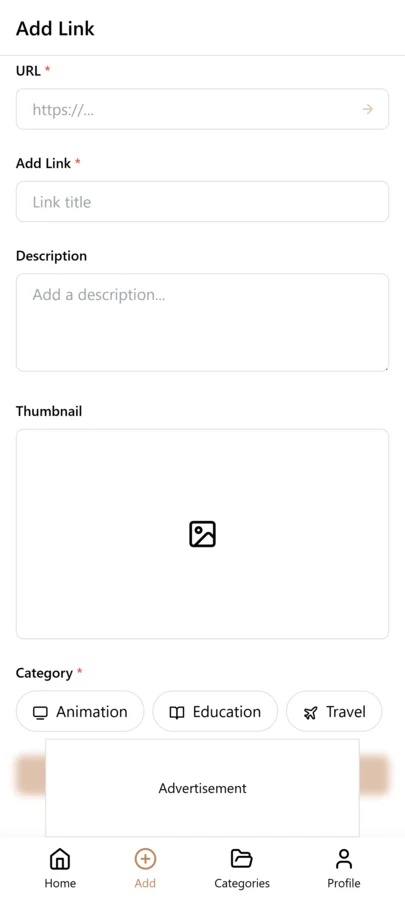
- Open the LinkVault browser extension or web app while viewing the PDF.
- Click Save. LinkVault captures the full PDF URL automatically.
- Replace the default filename in the title field with something meaningful.
- Choose a destination category, or leave the link in your default library.
- Click Save to confirm. The bookmark now appears on your dashboard.
Step 2: Add a Descriptive Note
Saving the URL is only half the job. The note is what makes the link retrievable later.
- Open the saved PDF link from your LinkVault dashboard.
- Click the Notes field beneath the link preview.
- Write two or three sentences describing what the document covers — its topic, key findings, or relevant sections.
- Mention any deadlines, parties, or project names that matter.
- Save your note. LinkVault indexes it for search immediately.
Organizing and Reviewing Saved PDFs
Once you have saved a few PDF links and added notes, your LinkVault dashboard becomes a personal document library. Each entry shows the title, a preview of your note, and any assigned tags. You can review everything at a glance and refine your notes as your understanding of a document deepens.
Step 3: Tag PDFs by Document Type
LinkVault lets you organize PDFs with tags so you can filter by document category at a glance. Use these common tags to keep your library consistent:
- report — quarterly summaries, analytics dashboards, performance reviews
- contract — agreements, NDAs, statements of work, vendor terms
- manual — user guides, technical specifications, onboarding documentation
- research — studies, white papers, literature reviews, data appendices
Finding Saved PDFs with Content-Based Search
When you need a PDF saved three months ago, you will not remember the URL — you will remember what it was about. LinkVault searches across titles, notes, and tags simultaneously. Type vendor renewal deadline or Q3 attrition analysis and every matching PDF appears instantly. Combine a tag filter with a search query to narrow results further, such as searching termination clause within the contract tag. Content-based search is the feature linkvault users rely on most.
Version Tracking for Updated PDFs
PDFs get updated. A contract gets amended, a report gets revised, a manual gets a new edition. LinkVault tracks versions so you always know whether you are viewing the latest copy. When you save a new URL for a document you have already bookmarked, linkvault links them together and marks the older entry as a previous version. Keeping an archive of prior versions is useful when an amendment changes terms you originally agreed to.
Handling Login-Gated and Internal Portal PDFs
Many of the most important PDFs you encounter live behind authentication walls — internal company documents on a corporate intranet, research papers on a university library portal, compliance documents in a vendor management system. These login-gated PDFs present a unique challenge because the URL alone is not enough; you need valid session credentials to actually open the document. LinkVault handles this gracefully because it bookmarks the location, not the file itself. When you save a login-gated PDF link, the URL is stored with your notes and tags just like any public link. When you later click through from LinkVault, your browser session handles the authentication automatically if you are already logged in to that portal.
The key to managing internal portal PDFs effectively is adding rich notes at save time, since you may not be able to re-open the document months later if your access has changed. When you save a login-gated PDF, write a note that includes the portal name, the document title, the date you accessed it, and a summary of the key content. For example: Vendor compliance certificate from the Acme partner portal, expires December 2025, covers SOC 2 Type II and ISO 27001. If your access to that portal is later revoked, your note still tells you exactly what the document contained and where it lived, which is often enough to request a copy through other channels. Tag these links with a portal tag and the document-type tag, so you can filter to see every internal-portal document in your library at once. For highly sensitive internal documents, be mindful that your notes should describe the content without reproducing confidential text, keeping your LinkVault library safe even if it were ever shared or compromised.
Building a Naming Convention for PDF Bookmarks
A consistent naming convention is what separates a PDF library you can navigate instantly from one that requires opening every link to figure out what it contains. When you save dozens or hundreds of PDF links over months, the title field becomes your primary visual cue while browsing. Default filenames like report_final.pdf or document_2024-03-15.pdf are useless in this context. By adopting a structured naming convention, every PDF bookmark becomes self-describing at a glance, and your library stays navigable no matter how large it grows. Below is a practical convention you can adopt today, along with examples for each component.
- Start with the document type: Begin every title with a standardized type prefix — Report, Contract, Manual, Research, Invoice, Policy. This groups similar documents visually when sorted alphabetically and makes type-filtering by eye instant. Example: Report — Q3 Financial Summary.
- Include the source or organization: Add the author or publishing organization after the type so you know where the document came from. Example: Research — Stanford ML Lab — Neural Network Pruning Methods.
- Add a date or version indicator: Append the publication date or version number so you can distinguish between multiple versions of the same document. Example: Manual — Acme Corp — User Guide v2.4 (March 2024).
- Use a brief content descriptor: End with two or three words that capture the specific subject matter, so two similarly titled documents remain distinguishable. Example: Contract — Globex Inc — NDA — Product Launch Confidentiality.
- Keep it under sixty characters: Long titles get truncated in the dashboard view. Aim for concise but complete — if every component is present, sixty characters is usually enough for most documents.
- Apply the convention retroactively: When you import existing bookmarks, spend a focused session renaming them to match your convention. The upfront effort pays off every single time you browse your library afterward.
Common PDF Bookmarking Mistakes and How to Avoid Them
PDF bookmarking has its own set of pitfalls that differ from regular web page bookmarking. Because PDFs are dense, version-controlled, and often shared across teams, the mistakes you make when saving them can compound in ways that regular link mistakes do not. The first and most damaging mistake is saving a PDF link without checking whether you are bookmarking the direct file URL or a landing page that happens to link to the PDF. Many sites wrap their PDFs in an HTML viewer page, and if you bookmark the viewer URL, your link may break when the page is redesigned even though the underlying PDF still exists. Always right-click the PDF link itself and copy the direct URL ending in .pdf when possible, so your bookmark points to the actual document rather than a wrapper page that could change.
The second common mistake is failing to note which version of a PDF you saved. When a colleague shares a contract draft and you bookmark it, your note should say Draft 3, received from Sarah on March 15. Three weeks later when Draft 5 circulates, you save that with its own note, and LinkVault links the versions together. Without those version notes, you may accidentally reference an outdated draft during a negotiation, creating confusion or even legal risk. The third mistake is neglecting to tag PDFs with a status or workflow tag. A research paper you have already read and summarized should be tagged differently from one you have saved but not yet opened. Use tags like unread, in-progress, and completed to track your engagement with each document, so your dashboard tells you not just what you have saved but what still needs your attention. Avoiding these three mistakes — bookmarking direct file URLs, noting versions, and tagging workflow status — transforms your PDF library from a passive archive into an active, reliable document management system.
Frequently Asked Questions
Can I save PDF links that require a login to access?
Yes. LinkVault stores the URL, and your browser session handles authentication when you click through. Note that linkvault bookmarks the location, not the file itself.
What happens if a PDF link breaks?
LinkVault checks links periodically and flags broken ones. Your notes and tags stay intact, so you keep a record of what the document contained even if the source moves.
Does LinkVault download PDFs to my device?
No. LinkVault saves the link and your notes, not the file. This keeps your library lightweight and avoids storage limits.
How do I bookmark a PDF that opens in an online viewer instead of downloading directly?
Right-click the PDF link itself and copy the direct URL, which typically ends in .pdf. If the site only offers an HTML viewer wrapper, bookmark the viewer URL but note in your description that the document is accessed through a viewer page. This way you know to check the wrapper page if the link ever appears broken, since the underlying PDF may still be available even if the viewer is redesigned.
What should I write in the notes field when saving a version-controlled PDF?
Include the version number or draft label, who shared it with you, and the date you accessed it. For example: Draft 3, received from Sarah on March 15, sections 4 and 5 updated. This ensures that when a newer version arrives, you can compare notes and immediately see what changed between versions without opening both files.
Can I track which PDFs I have actually read versus just saved?
Yes. Use workflow tags like unread, in-progress, and completed to track your engagement level with each PDF. When you save a link, tag it unread. When you start reading, change it to in-progress. When you finish, tag it completed and update your note with a brief summary of the key takeaways. Filtering by the unread tag shows you exactly what still needs your attention.